⚡ Before You Begin
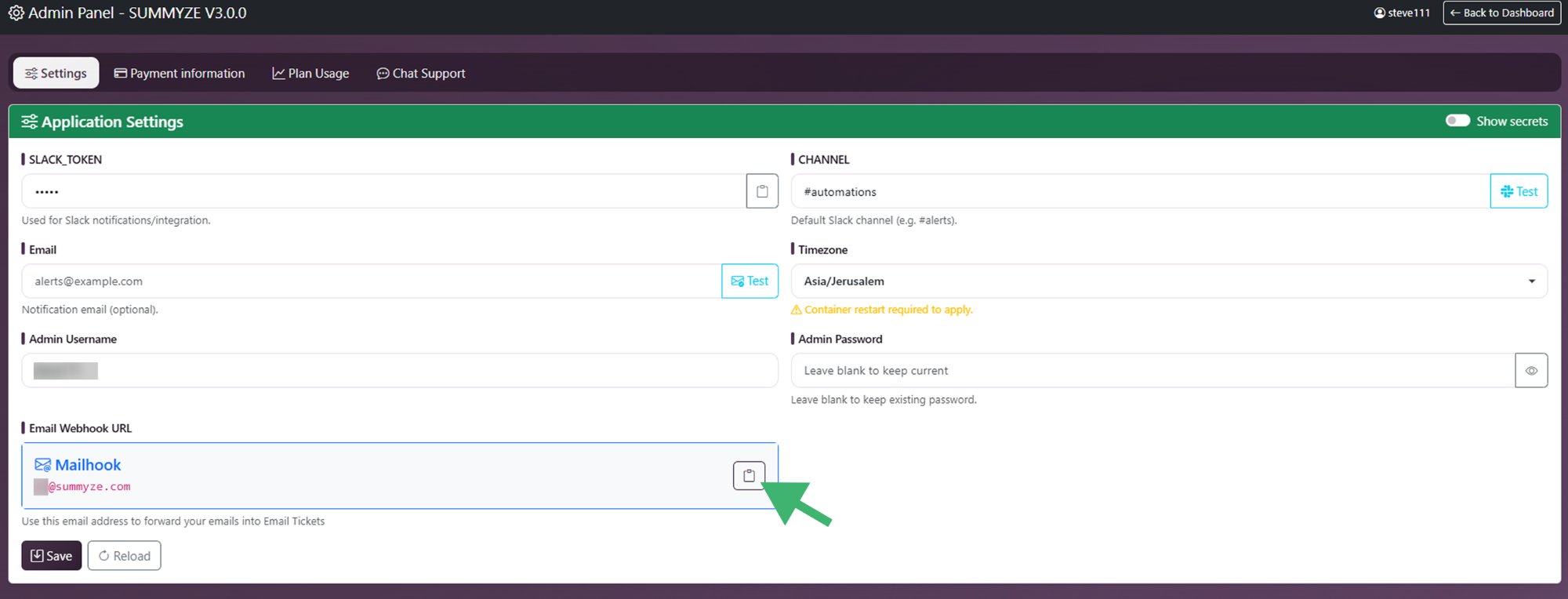
Log in to your SUMMYZE Admin Panel and copy your Mailhook (forwarding email address). You'll need this address in the steps below.
Admin Panel → Settings
1
Open Gmail Settings
- Log in to your Gmail account
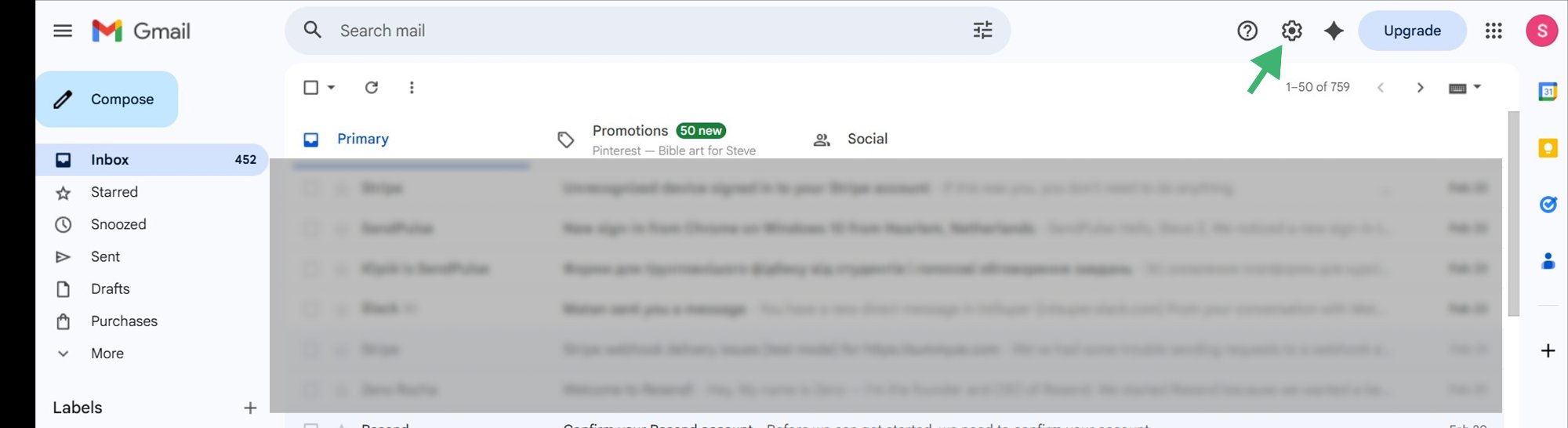
- Click the ⚙️ gear icon in the top right corner
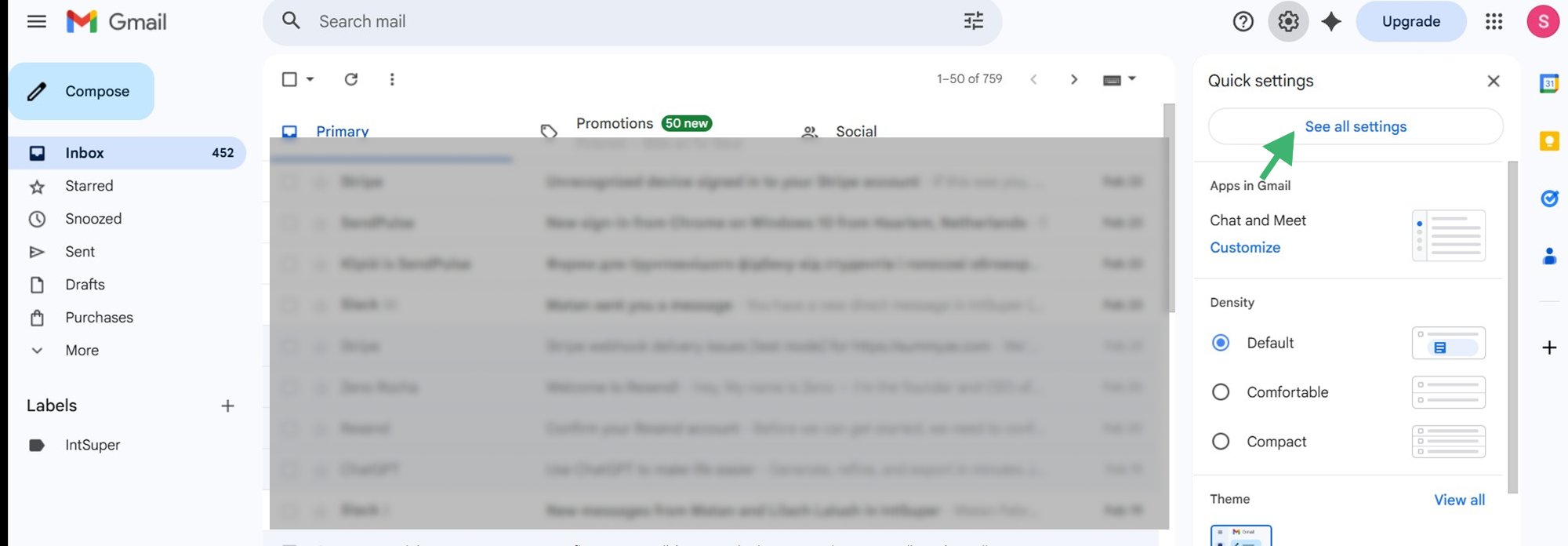
- Click "See all settings"
Step 1 — Gear Icon
Step 1 — Quick Settings Panel
2
Add a Forwarding Address
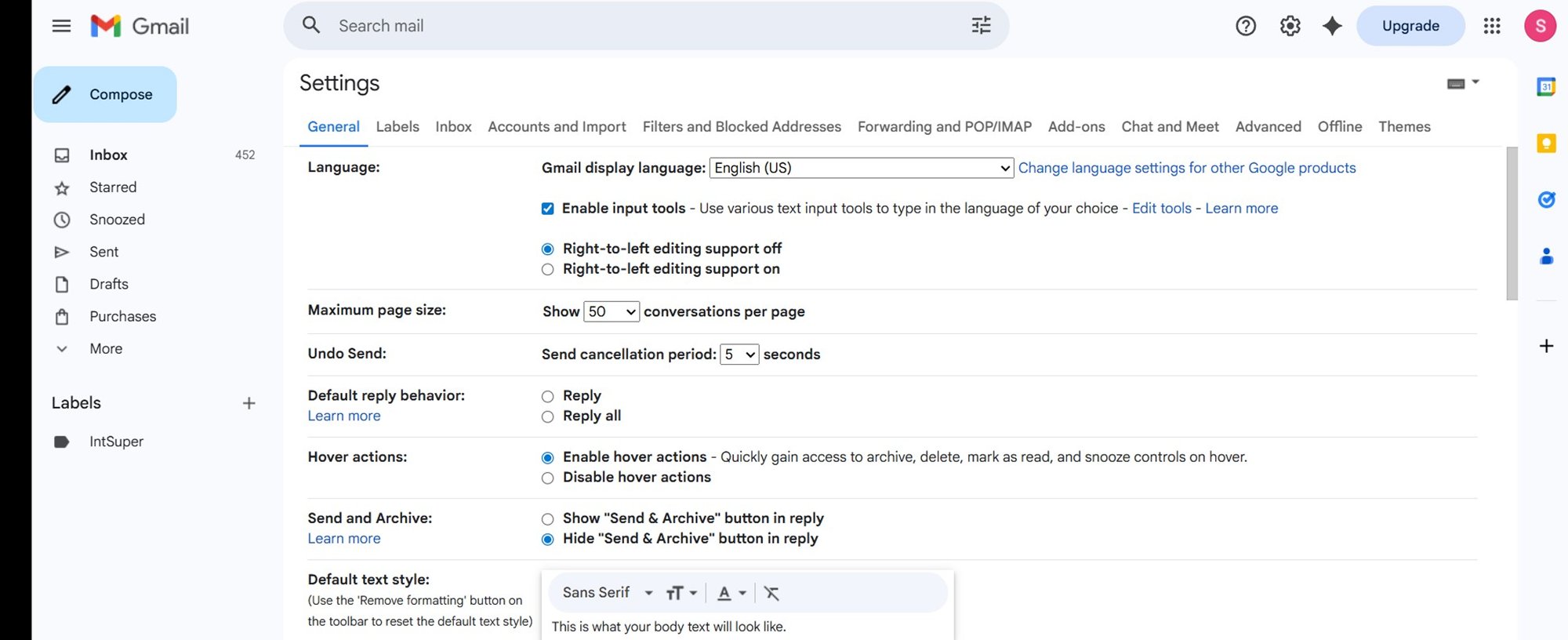
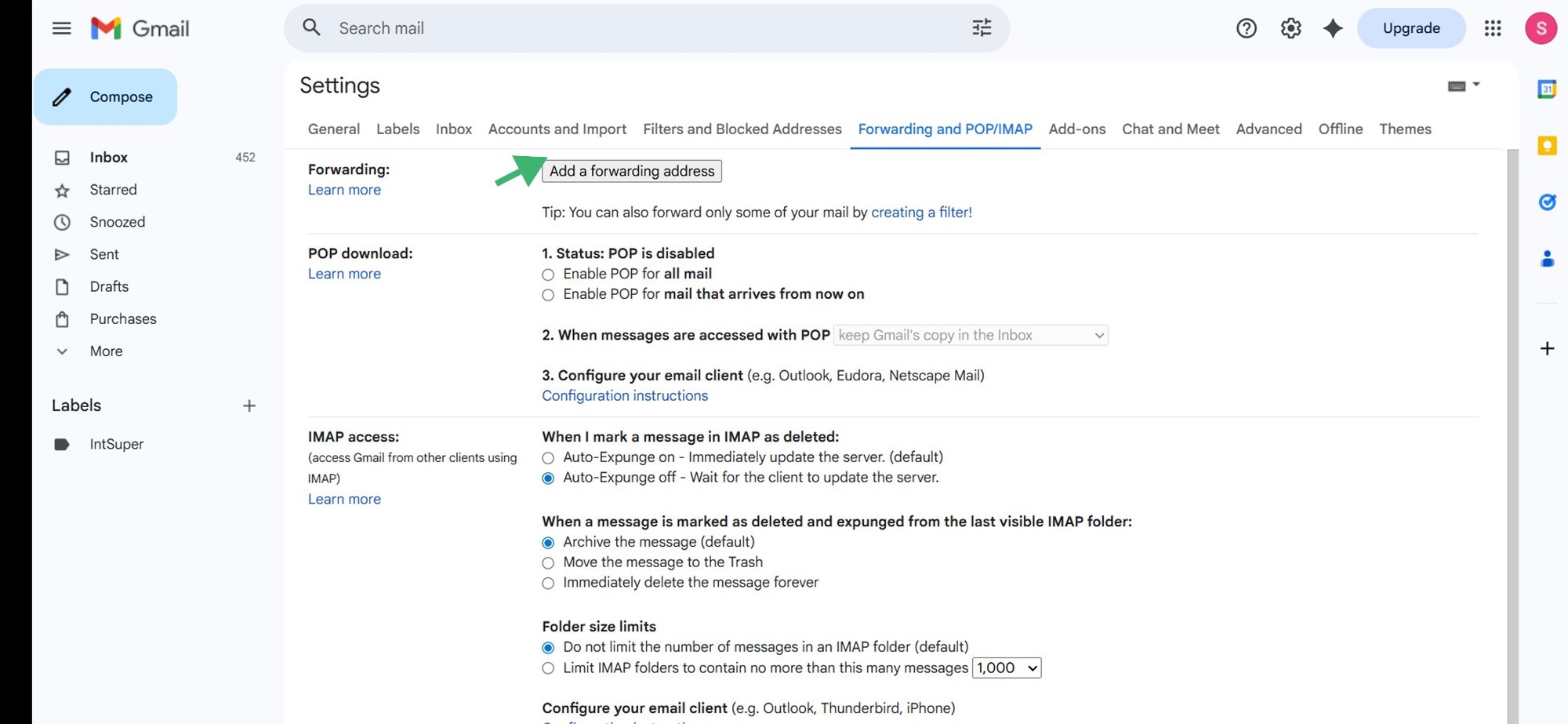
- Navigate to the "Forwarding and POP/IMAP" tab
Step 2 — Forwarding Tab
- Click "Add a forwarding address"
Step 2 — Add Forwarding Address
- Enter the SUMMYZE Mailhook address you copied from the Admin Panel
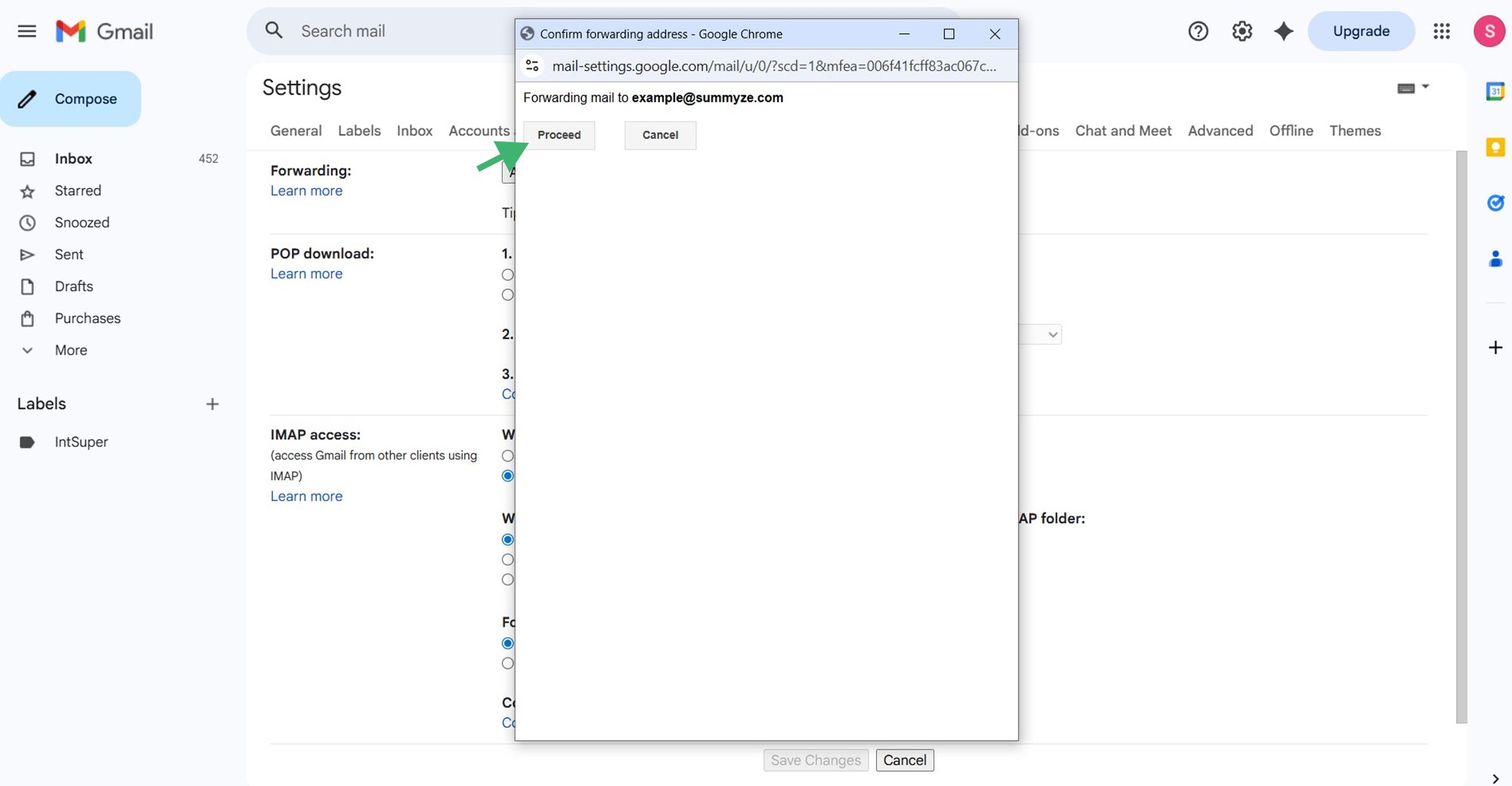
- Click Next → Proceed → OK
Gmail will now send a confirmation email to the forwarding address.
Step 2 — Confirm Dialog
3
Confirm the Forwarding Address
⏱️
Please note, the system adds incoming emails every 15 minutes — you may need to wait up to 15 mins before the confirmation email appears in the Email Tickets dashboard.
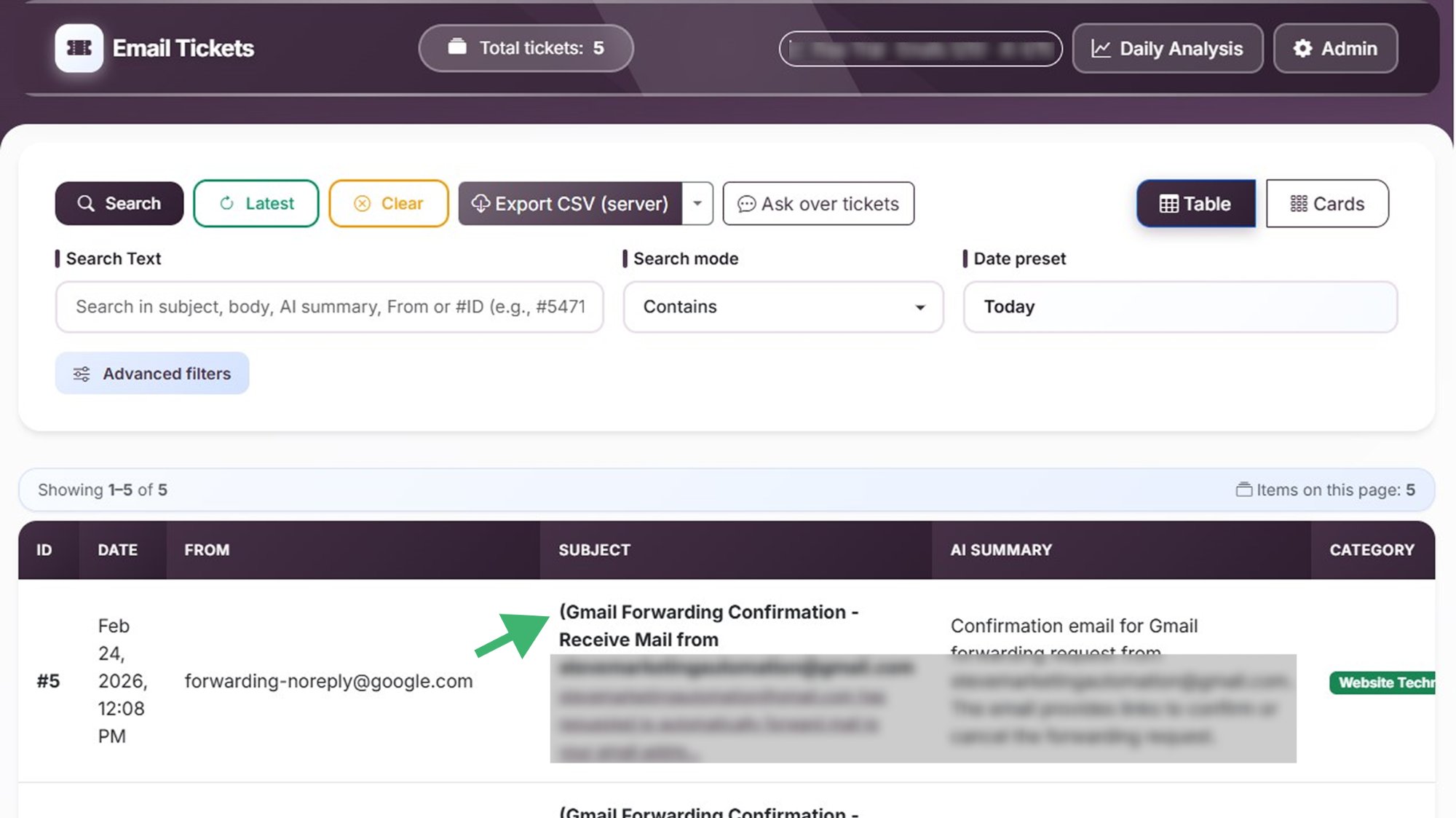
- Log in to SUMMYZE
- Open the confirmation email from Gmail under the Email Tickets tab
Step 3 — Email Tickets Tab
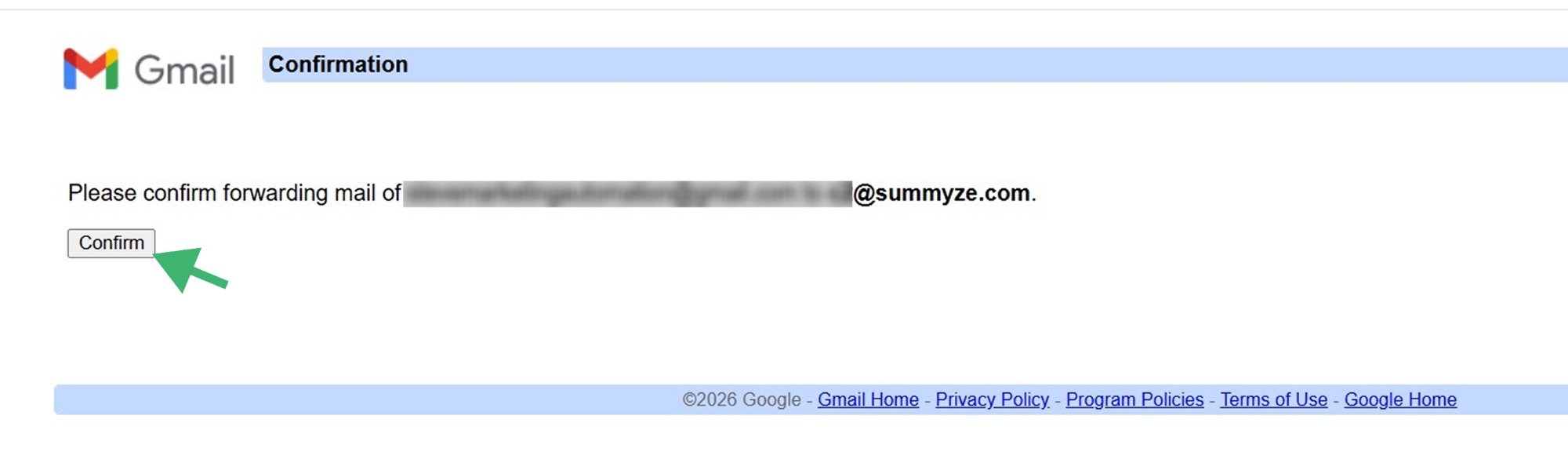
- Copy the confirmation link and paste it into your browser
Step 3 — Confirmation Link
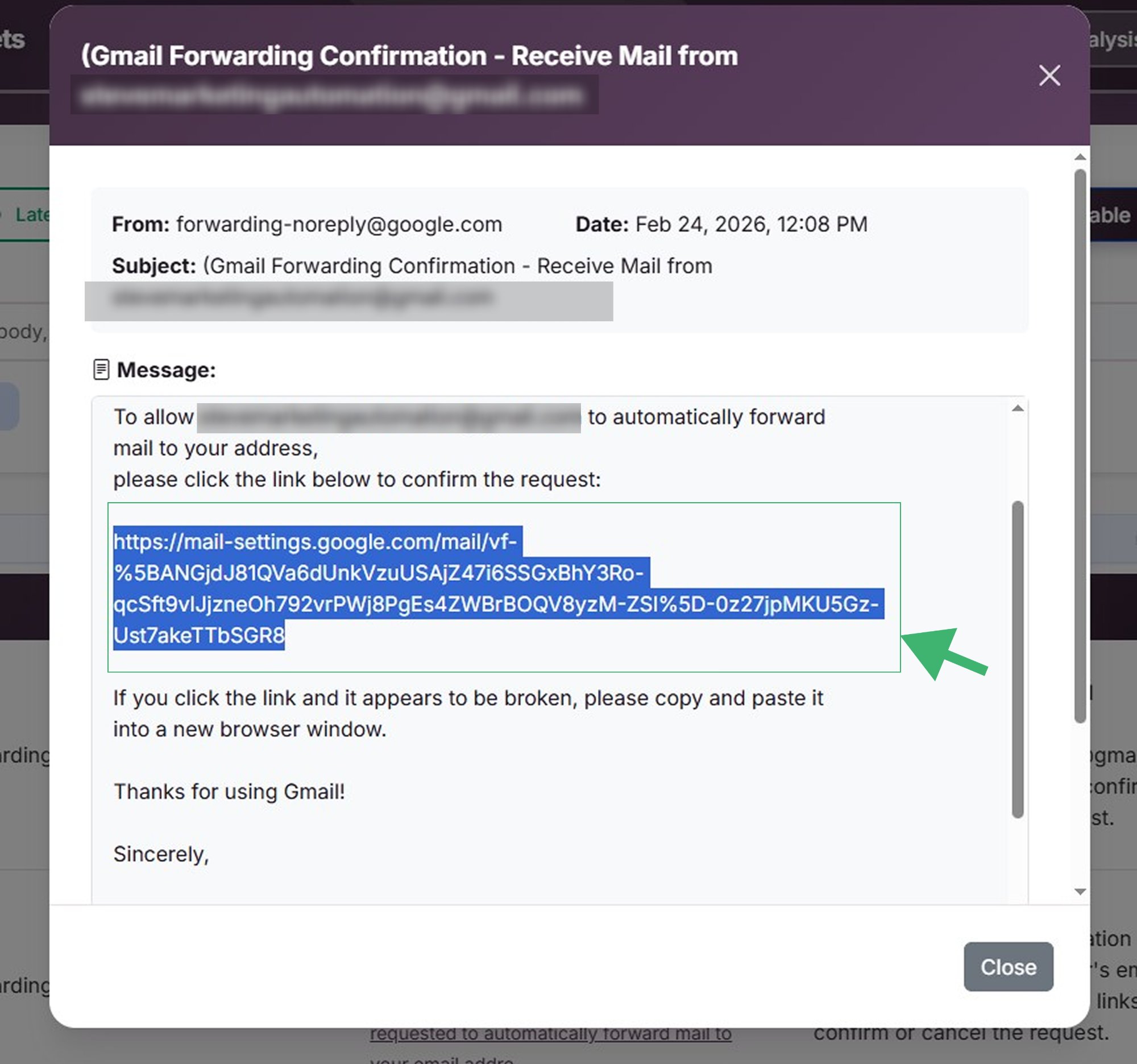
⚠️ Until this is confirmed, forwarding will not activate.
Step 3 — Confirm in Browser
4
Enable Forwarding
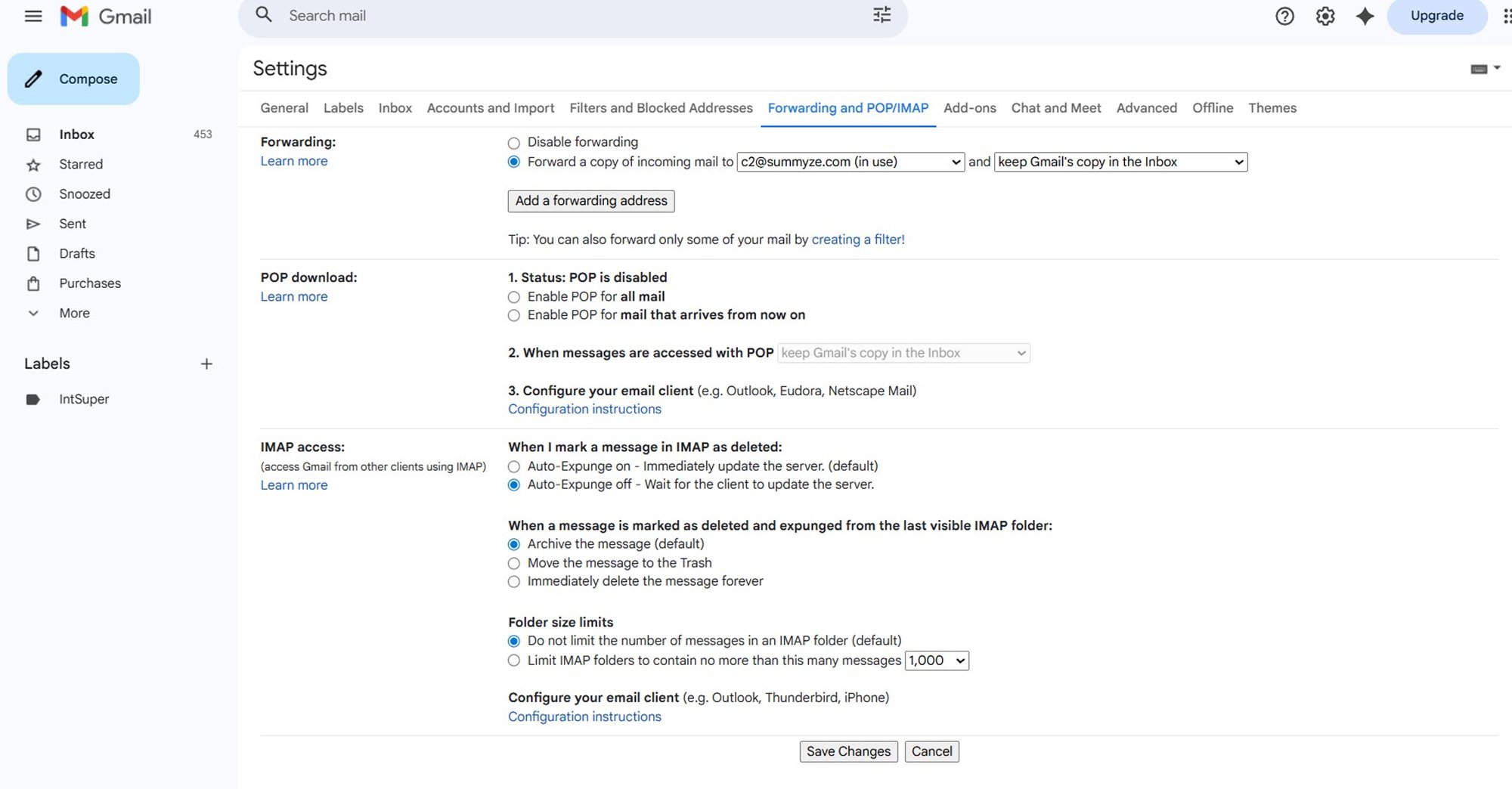
- Return to Gmail → Settings → Forwarding and POP/IMAP
- Select: "Forward a copy of incoming mail to SUMMYZE mailhook"
- Choose what Gmail should do with the original message:
- Keep Gmail's copy in Inbox (default)
- Mark as read
- Archive Gmail's copy
- Delete Gmail's copy
- Scroll down and click Save Changes
Step 4 — Enable & Save
✅ All Done!
All new incoming emails will now automatically be forwarded to your SUMMYZE Dashboard.
⚠️ Important notes:
- Forwarding applies only to new emails, not existing messages
- You can forward to one address only using this method
Use Gmail Filters if you want to forward only specific emails based on criteria like sender, subject, or keywords.
📌 Prerequisite: You must still complete Step 2 from Option 1 (add & confirm the forwarding address) before this will work.
1
Go to Settings → See all settings → Filters and Blocked Addresses
2
Click "Create a new filter"
3
Define your criteria (e.g. from address, subject keyword) — or leave blank to match everything
4
Click "Create filter"
5
Check "Forward it to" and select your SUMMYZE Mailhook address
6
Click "Create filter" to save
✅ Filter Created
Only emails matching your defined criteria will be forwarded to SUMMYZE.