SUMMYZE works by receiving all your forwarded emails and instantly summarising each one with AI. The very first thing to do is tell your email provider to redirect emails to your personal Mailhook address.
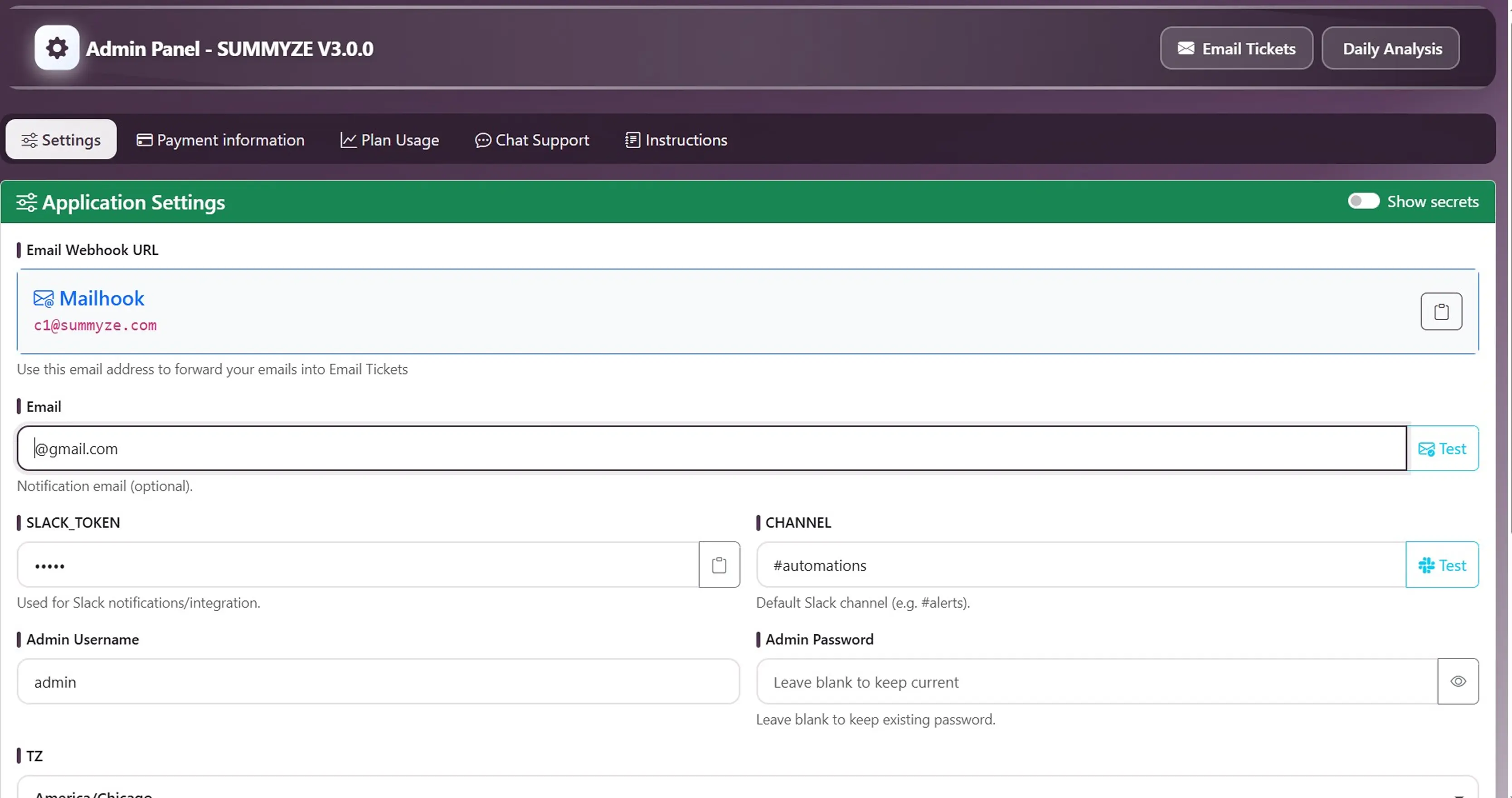
You'll find the Mailhook address in Admin Panel → Settings, right at the bottom of the Application Settings card. Copy it and use it as the forwarding destination in your email provider.
Using Gmail?
Follow our detailed step-by-step walkthrough — it takes about 3 minutes.
View Gmail Guide →Using Outlook or another provider?
The process is similar — find the forwarding section in your provider's settings and paste the Mailhook address.
View Other Providers Guide →⏱️ Heads up: The system syncs incoming emails every 15 minutes. Don't worry if a forwarded email doesn't appear instantly — it'll show up shortly.
Want your daily, weekly, and monthly summary reports delivered straight to your inbox? Enter your preferred email address in the Email field in Admin Panel → Settings.
💡 Pro tip: use a different address than the one that forwards emails here — it keeps things clean.
If your team lives in Slack, SUMMYZE can send real-time notifications to any channel. You'll need an active Slack workspace — the setup takes around 5 minutes.
Paste your Slack Bot Token into the SLACK_TOKEN field and the channel name into CHANNEL, then hit Test to confirm it works.
Want to change your login credentials? Head to Admin Panel → Settings and update the Admin Username and Admin Password fields. Leave the password field blank to keep the current one.
🔑 Important: Save your new credentials somewhere safe — at the very least, let your browser save them before you log out.
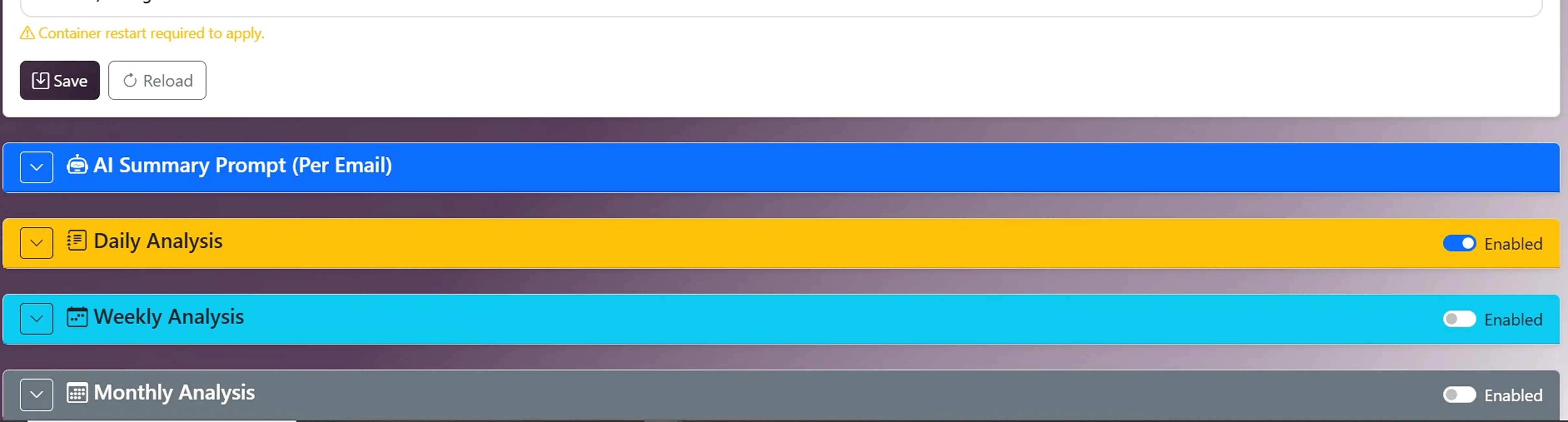
Scroll down in the Admin Panel — below the main settings you'll find the AI configuration blocks. These control how SUMMYZE analyses and summarises your emails.
🧠 What this does
Every incoming email is immediately processed by this prompt the moment it lands in SUMMYZE. It generates a short AI summary, assigns a category, and extracts key information — all automatically, all in real time.
This is the most important prompt to get right. Tailor it to your use case — describe what kind of emails you receive, what information matters most, and what format you'd like the summary in.
- Edit the prompt to match your business context
- Click Test and paste a real email you regularly receive
- Review the output — tweak the prompt until the result is exactly what you need
- Click Save Prompt when happy
💡 Tip: The better your prompt, the richer your ticket data — which makes filtering, searching, and AI analysis much more powerful later on.
This prompt generates your daily report — a consolidated analysis of all emails received that day. Check the built-in example we've prepared and adapt it to match the kind of insights you're looking for.
- Review the default prompt as a starting point
- Adjust the tone, structure, and focus areas to your needs
- Use Test to preview the output before going live
- Click Save Prompt
Further down you'll find the Weekly Analysis and Monthly Analysis prompts. These aggregate your daily reports into higher-level summaries for leadership or regular reviews.
- Set your preferred Weekly report day (e.g. Monday)
- Customise prompts or keep the defaults — they're solid out of the box
- Monthly reports run automatically on the 1st of each month at 02:00
This is where the magic happens. Every forwarded email becomes a ticket — complete with its AI summary, assigned category, date, and sender.
🔍 Powerful Search & Filters
Search by keyword, filter by category, date range, sender, and more — using flexible AND/OR logic. Find exactly what you're looking for in seconds, not hours.
📥 Export to CSV
Filter your tickets and download a CSV file with the exact data you need — perfect for reporting, sharing, or further analysis in Excel or Google Sheets.
✨ Ask Over Tickets — the star feature
Filter your emails, then click Ask Over Tickets. You can ask any question across all filtered emails — SUMMYZE will analyse them together and give you a synthesised answer.
The answers include clickable references — tap any one to jump straight to the source email. This feature is included in every plan.
Head to the Daily Analysis section to see all reports generated by your configured prompts — daily, weekly, and monthly summaries all in one place.
Note: the per-email AI summaries live inside Email Tickets, not here — this section focuses on the aggregated reports.
You're all set. Enjoy the journey!
Less time drowning in emails. More time making smart decisions.
— The SUMMYZE Team